
Windows RDP Security Update Popup
Windows rolled out a security update on RDP connections that now shows a new pop-up when launching a remote file directly. The screen will look like this:
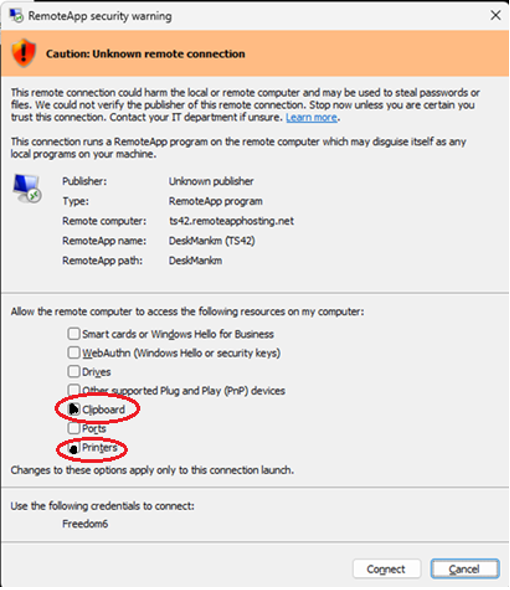
1.) Make sure you select the “Clipboard” and “Printers” checkboxes.
2.) Click “Connect.”
3.) This will take you to your App Login.
4.) The next time you log in, the security pop-up will display, but you do not need to select the checkboxes again; just click on “Connect.”
Resetting the First Launch Dialog
Follow these steps to remove the saved RDP client settings so Windows will show the first‑launch dialog again with the checkboxes enabled.
Step‑by‑Step Instructions
1. Press Windows Key + R
2. Type regedit and press Enter
3. In Registry Editor, navigate to:
HKEYCURRENTUSER\Software\Microsoft\Terminal Server Client
4. Right‑click the folder Terminal Server Client
5. Select Delete
6. Confirm the deletion
7. Close Registry Editor
8. Log off and log back in
9. Launch the RDP connection again — the checkboxes will now be enabled


